Amazon variants not transmitted: Check the product group
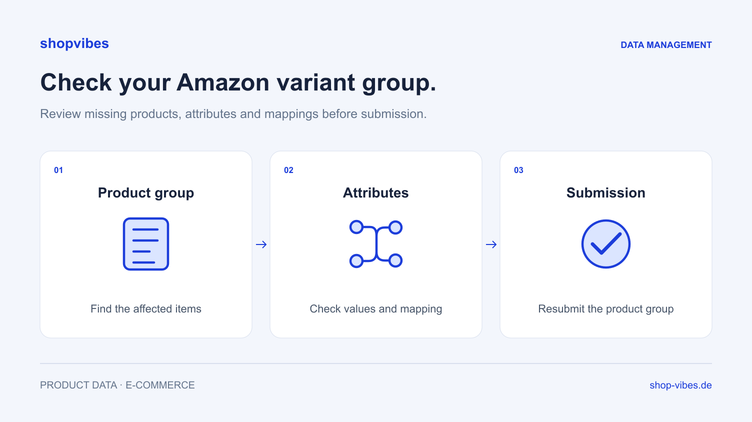
You submit a product group to Amazon and receive an incomplete-variant-group message even for items that appear to have no errors. The next step is to inspect the group members named in that feedback. One of them may contain the actual data gap.
For the documented Amazon submission process, shopvibes completes the group associated with the selected variants and checks its members. If a group member fails validation, the whole group is held back. This article explains that shopvibes workflow and how to find the cause systematically.
Distinguish product group, SKU and ASIN
Your internal product family describes related configurations. A SKU identifies a listing within your seller account; an ASIN identifies the product in the Amazon catalogue. The specific Amazon product type determines which relationships between configurations are permitted.
Before making a correction, check whether the items belong in the same group and whether the chosen variation attributes are allowed. Similar product names alone do not establish a valid variation relationship. Sets also need clear product information and must be suitable for the intended structure.
Why does shopvibes hold back variants without their own errors?
shopvibes documents a group check for this submission process. Selecting individual variants automatically completes the related group. Its products are then checked.
If one member has a missing required value or invalid mapping, for example, shopvibes holds back the group. Messages on the other items refer to the products responsible. Open those products to find the underlying error and address its cause.
This safeguard is not a universal rule for every Amazon interface or manual upload. The valid product type and current destination requirements remain authoritative.
Step 1: Open the products causing the issue
Start with the group message in the submission. Record the named items and open their own messages. This separates the notice that the group is held back from the specific error affecting one member.
Keep three details together:
- Which internal item number is affected?
- Which property or relationship is being flagged?
- Does a product value need completing, or does a mapping need changing?
Selecting only the apparently error-free variants again leaves the cause in place. The documented process completes and checks the group again.
Step 2: Separate product values from mapping
An empty value and an incorrectly mapped field need different corrections.
| Cause in the test case | What to check | Where to correct it |
|---|---|---|
| Required information has not been maintained | Record for the affected configuration | Complete the product record |
| The information exists, but the output is empty | Source and destination attribute in the mapping | Adjust the mapping |
| A value does not match the allowed selection | Current requirements and permitted values | Set the factually correct value mapping |
| The wrong image is used | Media relationship and variant output | Check media assignment or mapping |
| The group relationship is unclear | Product type and intended variation attributes | Check the group and mapping against destination requirements |
This table describes possible checks, not original Amazon error codes.
Example: Two widths in a table range
These fictional internal records are not a valid Amazon template. The test assumes that the chosen product type permits the intended relationship and that material is required by the configured mapping.
| Internal item number | Width | Material in the faulty test | Effect in the described shopvibes process |
|---|---|---|---|
| DEMO-TABLE-120-OAK | 120 cm | Melamine-faced chipboard | Group held back because of the second item |
| DEMO-TABLE-160-OAK | 160 cm | Missing value | Address this item’s specific data gap first |
Both items belong to TABLE-LINN. Add the verified material value for the 160 cm configuration and check that the mapping outputs it. Then submit again and inspect both variants.
A successful pre-check confirms only that stage. Review Amazon’s subsequent processing and the actual listing state as well. Further requirements may become visible there.
Step 3: Review the whole group
After fixing the specific error, compare all configurations. Pay particular attention to properties held together in the source but different in the products being sold.
- Does every sellable configuration have an unambiguous item association?
- Are size, colour and other permitted variation attributes complete?
- Does each variant image show the correct configuration?
- Are dimensions and contents consistent with title and copy?
- Are sets and single items clearly distinguished?
Our furniture variants guide explains a shared data model from which partner-specific outputs can be derived.
Step 4: Submit again and inspect the result
Correct the identified products and restart the configured submission process. Keep the affected item numbers and time. Check the new response rather than an older listing job.
Then review Seller Central to confirm that the expected listings exist and that variant relationships and product information appear correctly. Technical acceptance, an error-free stage and buyability are separate questions.
Common questions about variant groups
Is a missing value always the cause?
No. The specific response may also concern an invalid value or unsuitable mapping. Read the individual messages on the products identified in the group notice.
Can products without variants be submitted separately?
The shopvibes help article explains that products without variants are not subject to the group check. They can still be held back because of their own errors. Review their individual messages too.
Does every product family use the same structure on Amazon?
Permitted attributes and relationships depend on the product type and target marketplace. Use the current requirements for each new product group.
Where can I find help with a manual file?
Our Amazon flat-file guide explains preparation and checking of a file upload. The Amazon Seller integration covers the configured API workflow with shopvibes.
Sources and review date
Reviewed on 3 November 2026. The group behaviour is documented in the shopvibes help article on incomplete variant groups (German). Amazon’s product requirements documentation explains the role of product type, seller and target marketplace.
About the author

Author
Tim Hoffmann
Chief Product Officer, shopvibes
Tim Hoffmann is Chief Product Officer at shopvibes. His work focuses on product data management, marketplace integrations and e-commerce workflow automation.