Prepare home24 product data: dimensions, variants and included items
A bed is described as “160 × 200 cm”. The export file repeats those figures as its outer dimensions, while the image shows the larger configuration. The fields contain values, but they describe different things. Before correcting the problem at the retailer, inspect the product record and its mapping.
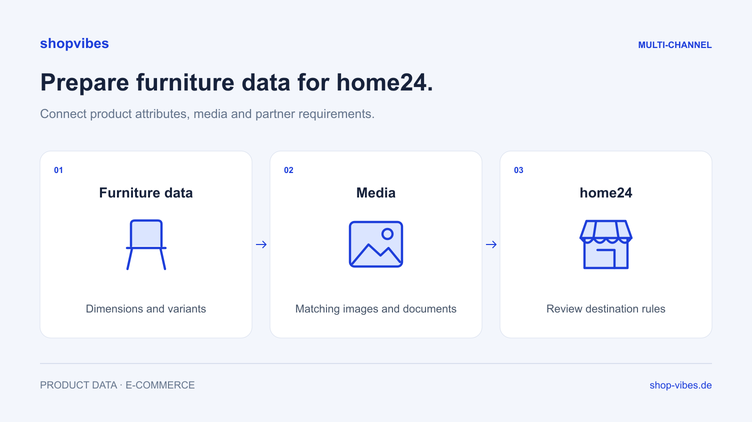
This guide explains how to prepare a furniture range for home24 Marketplace: distinct dimensions, unambiguous variants, clear included items and a representative test. The home24 integration page covers access and connection; this article focuses on the product information itself.
Establish the relevant home24 process first
Marketplace and traditional supplier processes have different prerequisites. For the Mirakl-based marketplace connection described here, the shopvibes team needs the intended partner account’s API key and the relevant category template. These provide the basis for mapping.
Generate the template in the relevant partner portal for the categories you actually need. Record the category, language and version. A template from another Mirakl retailer does not replace this check. Agree with home24 which countries and categories your account covers; an English guide does not imply a UK or US account programme.
Use a bed in two sizes as your test case
The following fictional figures describe internal product data. They are neither official home24 field names nor a file for direct upload. The example consists of two grey bed frames; neither includes a mattress or slatted base.
| Property | Smaller configuration | Larger configuration |
|---|---|---|
| Item number | DEMO-BED-160-GREY | DEMO-BED-180-GREY |
| Sleeping surface (W × L) | 160 × 200 cm | 180 × 200 cm |
| Outer product dimensions (W × L) | 170 × 210 cm | 190 × 210 cm |
| Colour | Grey | Grey |
| Included items | Bed frame | Bed frame |
| Excluded items | Mattress and slatted base | Mattress and slatted base |
The shared series can supply the model name, for example. Assign the sleeping surface, outer dimensions and appropriate image to each individual configuration. Each variant’s description can then provide specific information.
Keep sleeping surface and outer dimensions separate
In this example, the sleeping surface describes the intended mattress size. The outer dimensions describe the space occupied by the frame. Buyers may need both to check their mattress and the available floor space.
Create distinct properties and document units. A vague attribute called “width” can easily become the destination for two different values. When mapping it, check what the target field in the current category template actually means.
A simple comparison exposes the problem:
| Check | Incorrect output | Corrected output for DEMO-BED-160-GREY |
|---|---|---|
| Sleeping surface | 180 × 200 cm from the other configuration | 160 × 200 cm from the selected variant |
| Outer product dimensions | 160 × 200 cm from the sleeping surface field | 170 × 210 cm from the outer dimensions field |
| Description | “Available in 160 and 180 cm” as the only size information | The size of the configuration being offered is stated explicitly |
Make the correction at the source or in the mapping. Manually replacing text at the retailer does not permanently fix the wrong assignment in the next data run. The guide to product, packaging and package dimensions provides further examples.
Treat shipping packages as a separate data area
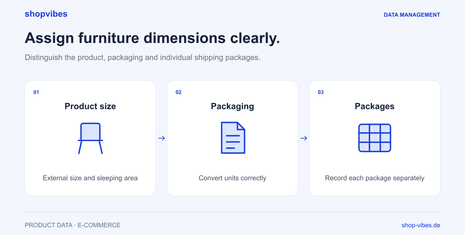
Packaging also has dimensions and weight. These do not describe the furniture’s floor space. If one item consists of several packages, keep them separate in the internal model and check which details the agreed retailer process requires.
Our fictional smaller frame has two packages:
| Package | Length × width × height | Weight |
|---|---|---|
| 1 | 215 × 45 × 15 cm | 18 kg |
| 2 | 175 × 65 × 18 cm | 22 kg |
These values describe the example item’s packaging. They do not establish the outer dimensions of the assembled bed. Do not enter multiple packages as multiple products or create a supposed product dimension by adding carton dimensions together.
Make the included items clear in text and images
A furnished bedroom photograph may show a mattress, bedding, cushions and decorations. Only the bed frame is sold in this example. State explicitly what is included and place relevant exclusions in the appropriate product information.
Check each configuration:
- Does the text describe exactly the item being offered?
- Does the assigned image show the correct size and colour?
- Can accessories and decorations be distinguished from included items?
- Do assembly and care instructions belong to this model?
- Are the product record, text and media consistent?
Use manufacturer information as the factual source. An image alone cannot reliably establish whether a slatted base is included, for example.
Turn the category template into a mapping you can check
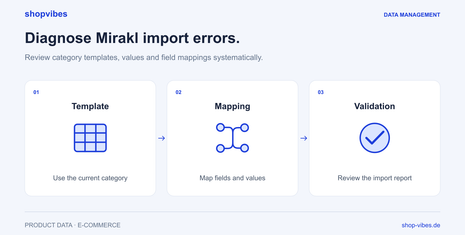
Work through the template’s target fields one at a time. Assign an unambiguous source to each field and record whether a value is copied directly, mapped to an allowed value or converted appropriately. Inspect units and decimal separators in the generated output.
shopvibes documents attribute mappings, fixed values and value mappings in the Mapping Editor. The Complex Editor combines attribute values with fixed text. Handle a unit conversion through a suitably configured Multiplier mapping; do not assume an unchecked arithmetic formula can be inserted into a text combination.
The current template establishes which details the category requires. Our example explains the data structure and does not replace those requirements.
Submit and evaluate a small test
- Select both configurations. The test must expose size differences. A single simple item can hide an incorrect shared assignment.
- Compare source data and mapping. Before submission, inspect the sleeping surface, outer dimensions, included items and media of both configurations side by side. Check which source is assigned to each target field.
- Start the listing and inspect the submitted output. Record the product data covered by the test. For many connections, the last submitted file can subsequently be downloaded in shopvibes for inspection; availability depends on the partner. Price and stock processes are agreed separately.
- Assign feedback to its cause. Add a missing value in the product record. Correct an incorrect assignment in the mapping. Compare a disallowed value with the current category template.
- Inspect the result at the partner. Check processed content and offer state. A successful technical submission does not yet confirm publication.
The Mirakl product import diagnosis guide provides a systematic approach to templates, allowed values and assignments.
Checklist before the next range update
- Are marketplace account, category, language and template version recorded?
- Does each configuration have an unambiguous item number and appropriate variant values?
- Are sleeping surface, outer dimensions and packaging information separate?
- Do units and values match the actual category template?
- Are included items and relevant exclusions clear?
- Do images and documents belong to the correct item?
- Have issues been corrected and the result checked at the partner?
How shopvibes supports the data process
With shopvibes, you maintain product data and media centrally and configure output for the relevant retailer. Reusable mappings help prepare further items using the same checked principle. Setup, category requirements and the scope of ongoing changes are agreed for your connection.
The retailer template guide explains mapping through another furniture example. Our furniture solution shows how this creates a shared foundation for several sales channels.
Bring a current category template and two furniture variants to your demo. Your data gives us a concrete basis for discussing the assignments and checks you need for home24.
Sources and review date
Reviewed on 3 November 2026. The shopvibes help centre instructions below are in German and cover the documented partner workflows.
- shopvibes: Mirakl category templates
- shopvibes: Mirakl partner access
- shopvibes: mapping and value assignments
- shopvibes: inspect submitted data
About the author

Author
Tim Hoffmann
Chief Product Officer, shopvibes
Tim Hoffmann is Chief Product Officer at shopvibes. His work focuses on product data management, marketplace integrations and e-commerce workflow automation.