OTTO product not online: Check status and product data
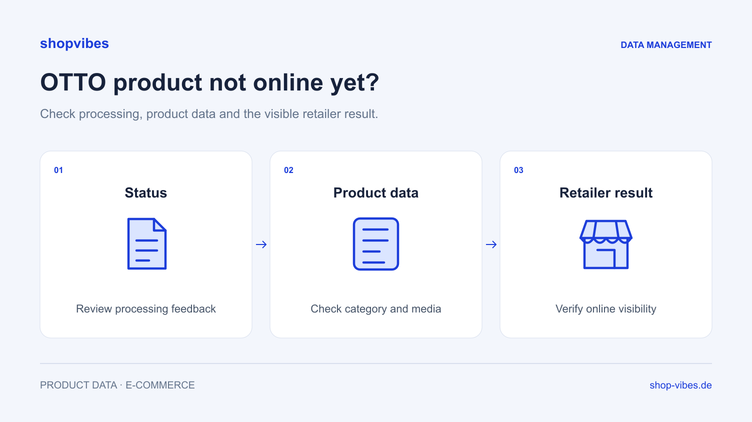
The product data has been submitted to OTTO Market, but the item is still not visible on otto.de. Before sending the same data again, establish which stage has completed and where processing actually stands.
Acceptance of a submission, validation of individual variants and visibility on the marketplace are different matters. This guide helps you structure the data checks and make a correction in the right place. It concerns the OTTO Market process in Germany.
What does a successful submission mean?
The OTTO API documents asynchronous processing. An initial response may confirm that data has been accepted for processing. The results for individual variants must then be reviewed, followed by marketplace status.
In the technical documentation, PENDING means that not all variants have been processed. DONE means processing has finished; it does not by itself establish that every variant succeeded and is visible. Inspect the result for the affected variant and its subsequent marketplace status.
Your software or partner portal may use different labels. The key question remains: which processing stage has been confirmed, and what is the specific result for this item?
Step 1: Identify the affected item
Record the item number, configuration and submission time. Use them to match the message with the state in the partner process. Otherwise, similarly named variants can lead you to correct an item based on another item’s feedback.
Also record whether the submission was intended to create a new item or change existing content. Check which version of the data was used. An older file or submission cannot establish the result of the current change.
Step 2: Review feedback and category requirements
Start with the specific message. Does it concern a missing attribute, an unsupported value or another processing stage? Compare it with the current requirements of the intended OTTO category.
Then check whether the value is actually missing from the product record or is simply not being output correctly. A completed internal field can still produce an empty output if it is not mapped to the required destination.
| Observation | Check | Next step |
|---|---|---|
| Required information is missing | Is it maintained for the right configuration? | Add the value to the product record and inspect a new output |
| An existing value is not transferred | Is the correct source attribute used? | Check the mapping and compare the test output |
| A value does not match the allowed selection | Does it follow the current category value list? | Map the factually correct permitted value and check again |
| The technical process has finished | What does the subsequent marketplace status report? | Review status per item and address the point it identifies |
This table is a diagnostic aid. It contains no original OTTO error codes and does not replace the actual feedback.
Step 3: Review variants, dimensions and contents together
For furniture, unclear output can stem from the relationship between values and products. Compare shared range information with each configuration: does the width come from the variant? Does the colour match the title? Is this a set or a single item?
The following fictional internal example is not an official OTTO template:
| Internal item number | Expected width | Output in the faulty example | Correction |
|---|---|---|---|
| DEMO-TABLE-120-OAK | 120 cm | 120 cm | The value belongs to the correct variant |
| DEMO-TABLE-160-OAK | 160 cm | 120 cm | Map the width from the 160 cm variant |
Both items belong to TABLE-LINN. Their description and material information can be prepared together. In the faulty example, however, the width mapping takes a shared range value. Correct its source and then check both items.
A factually wrong value may not produce a clear technical error. Review accepted outputs too. Our dimensions guide helps distinguish product measurements from packaging measurements.
Step 4: Match media and text to the configuration sold
Check whether the output image link is accessible and belongs to the item. An accessible image can still show the wrong colour, width or combination of products.
Compare title, description, contents and image together. A table photograph that includes chairs must not leave the actual delivery unclear. State what is included and check the partner’s media requirements.
Step 5: Correct the cause and repeat the same test
Fill a data gap in the product record and correct an incorrect assignment in the mapping. Then use the same small test group. This lets you check whether the change produced the intended result.
- Document affected items and the original feedback.
- Establish the correct value or mapping.
- Generate a new output or repeat the configured submission.
- Check processing and marketplace status for the items.
- For visible products, compare the presentation with the expected result.
If status remains unclear after a documented data correction, keep the item numbers, current state and time for further investigation through the partner process. Repeatedly sending unchanged data does not replace this check.
How does shopvibes help with corrections?
shopvibes prepares central product data for the configured partner. Attribute and value mappings connect the source with the required output. Corrections to a reusable mapping can then be applied to other suitable products.
The OTTO Market integration explains setup and test selection. Our template and mapping guide shows how to work with sources, destination fields and value mappings.
Checklist before resubmission
- Are the affected SKU, configuration and data version clear?
- Have the current category requirements been checked?
- Is the cause in the product record or mapping?
- Are dimensions, variant, set contents and media consistent?
- Is the correction visible in the new output?
- Have processing, marketplace status and the actual presentation been checked?
Our PIM guide explains how central maintenance connects with retailer outputs. In a demo, we can review a product family and its partner requirements together.
Source and review date
Reviewed on 3 November 2026. The status distinction is based on the official OTTO product documentation. The tables are our own fictional diagnostic examples.
About the author

Author
Tim Hoffmann
Chief Product Officer, shopvibes
Tim Hoffmann is Chief Product Officer at shopvibes. His work focuses on product data management, marketplace integrations and e-commerce workflow automation.