Who is the OTTO Market integration for?
For brands and sellers that already have access to OTTO Market or are preparing their onboarding. shopvibes connects central product maintenance with preparation and delivery to the configured OTTO Market account. Categories, mappings and the supported data scope are defined for your setup.
This page covers the OTTO Market marketplace process in Germany. The traditional OTTO supplier process is a separate sales model. You agree admission and commercial terms with OTTO; our selling guide helps you prepare.
Which product data should you prepare?
Start with the appropriate category. Then check which details are required for the product and its configurations. For furniture, pay particular attention to these areas:
| Data question | Practical check |
|---|---|
| Which configuration is being sold? | Check item number, colour and size together |
| Which details apply to the whole range? | Separate shared model information from variant-specific values |
| What do the dimensions describe? | Keep product, packaging and, where relevant, sleeping-area dimensions separate |
| What is included? | Distinguish a single item, set contents and photographic props |
| Which media belong to it? | Assign images and documents to the right configuration |
| Where do prices and stock originate? | Agree the authoritative source, delivery scope and maintenance process |
This table helps with preparation. The current OTTO category determines the required attributes and permitted values. The same internal attribute may need a different mapping for another partner.
Set up the integration in five steps
- Agree the account and scope. Define with our team which account to connect, which product group to start with and which data should pass through shopvibes. Treat content, prices and stock separately.
- Configure the category and mapping. Map central properties to destination attributes. Check units, value lists and text assembled from several product attributes.
- Test representative products. Choose a simple item and different configurations. If your range includes sets, also test a set item with clearly defined contents.
- Review feedback and the result. Fill gaps in the product record or correct the mapping. After submission, inspect the state in the partner process and the actual presentation.
- Extend the range in stages. Reuse the checked rules for other suitable items. Repeat the review for new categories or changed requirements.
Example: A table in two sizes
These fictional values illustrate an internal data model. They are not an official OTTO field template.
| Internal item number | Width | Depth | Height | Contents |
|---|---|---|---|---|
| DEMO-TABLE-120-OAK | 120 cm | 80 cm | 75 cm | One table; chairs excluded |
| DEMO-TABLE-160-OAK | 160 cm | 80 cm | 75 cm | One table; chairs excluded |
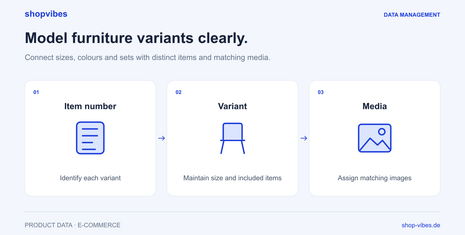
Both configurations belong to the TABLE-LINN family and are made from melamine-faced chipboard in this example. The model name and material can be maintained together. The width comes from the individual variant.
If the mapping accidentally uses a shared range value, both outputs could contain 120 cm. Compare the test outputs side by side, then check the product presentation after processing. Our furniture variants guide explains the data model; the dimensions guide distinguishes product and packaging measurements.
What should you check when results look wrong?
| Symptom | First check | Correction and verification |
|---|---|---|
| An attribute cannot be mapped | Current category and permitted values | Adjust the data or mapping; check the same test selection again |
| Two sizes show the same value | Whether the source attribute belongs to the variant | Use the variant-specific field; compare both outputs |
| An image shows the wrong configuration | Media assignment and the exported image link | Assign the correct file; inspect the output and retailer presentation |
| Set contents are unclear | Title, piece count and contents | Make the details consistent; review text and images together |
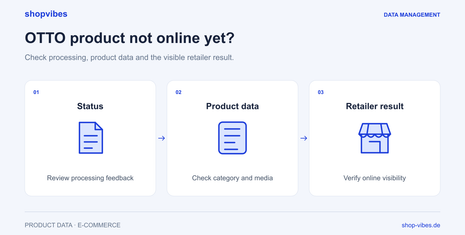
| Submission is complete but the product is not visible | Processing and the subsequent marketplace status | Review retailer feedback and address the relevant stage |
These are diagnostic examples, not a list of official OTTO error messages. Our article OTTO product not online explains the full check.
Checklist before rollout
- Are the account, category and approved product group correct?
- Are identifiers and variant-specific details unambiguous?
- Have values and units been checked against the category?
- Do images and documents belong to the item offered?
- Are set contents and excluded props clear?
- Have feedback and the actual product status been checked?
- Is it clear which system will handle later changes?
Common integration questions
Does an API submission automatically publish a product? Submission, data processing and marketplace status are separate steps. OTTO describes these checks in its API documentation. Inspect the retailer-side result too.
Are prices and stock continuously synchronised? We agree the specific scope and update process for your setup. This must identify the authoritative source and the route used for each data type.
What does another retail partner need? Central product data remains the foundation. Each partner needs its own category requirements, mapping and output. Our retailer template guide explains the principle; the furniture solution connects the main data areas.
Find more retail partners in the marketplace integration directory.
Sources and review date
Reviewed on 3 November 2026. The OTTO product documentation explains processing and marketplace status. The official checklist gives current seller requirements for OTTO Market; use the conditions applicable to your company rather than assuming eligibility from the language of this page.
OTTO API: Which product data should you check first?
Use the current OTTO API schema and category requirements as the basis for mapping:
| Data area | Check before submission |
|---|---|
| Identifiers | Match the SKU and EAN to the correct configuration |
| Category and brand | Use the appropriate category and OTTO brand identifier (brandId) |
| Category attributes | Compare required fields and allowed values with the current category list |
| Variants | Account for the category’s variationThemes when mapping configurations |
The OTTO API best practices require attributes marked LEGAL and recommend those rated HIGH for visibility. Keep category and brand references current so mappings match destination requirements.
OTTO processing states: What do the results mean?
The OTTO product documentation distinguishes processing results from marketplace status:
| OTTO response | What to check |
|---|---|
202 Accepted |
The request was received; processing is not yet confirmed |
PENDING |
Not all submitted variations have been processed |
DONE |
Processing has finished; review successful and failed variations |
unchanged |
The data was submitted again without changes |
Check marketplace status after the import as well. Earlier data errors can persist for unchanged records; resubmitting identical data does not correct them. This table explains terms used in OTTO’s documentation.
Which OTTO guide should you read next?
Additions reviewed on 30 October 2026 against the API schema, OTTO best practices and product documentation linked above.
Updated: