Prepare Wayfair product data: check variants, dimensions and target market
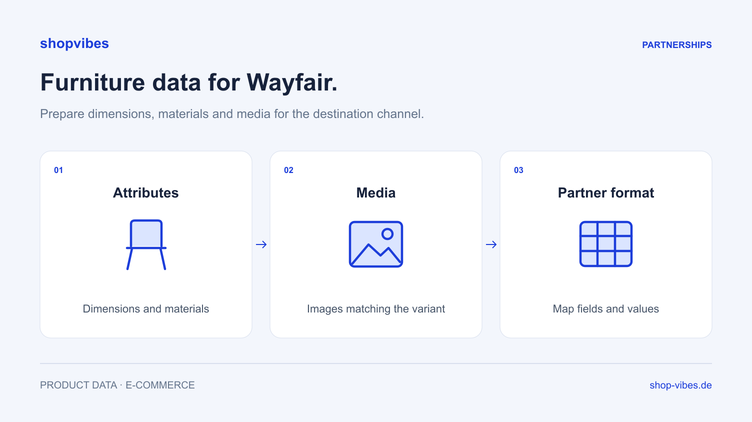
Your furniture range is intended for an international Wayfair launch, but its data comes from several spreadsheets. A width is stored against the model, packaging dimensions sit in a logistics file and the image shows another size. Before exporting the entire catalogue, you need a test that exposes these differences.
This guide presents our own checking method using fictional examples. Admission, required fields and approval follow the requirements of your agreed Wayfair programme. The Wayfair integration page explains the overall project scope.
1. Confirm the market before working on the data
Wayfair has not operated in the German market since 10 January 2025. Its company description names Canada, the UK and Ireland alongside the US business. First confirm with Wayfair which market is approved for your account and range. Germany announcement, company description.
Create a project record with the target market, programme, range, language, units, shipping location and responsible person. This prevents a German product description or an existing template from being treated as ready for every market without checking. A German business address alone does not establish permission to sell in the target market.

2. Choose four test cases instead of a random item
One well-maintained bestseller will not expose many common problems. Assemble a small range of contrasting examples for the first review:
| Test case | What the comparison exposes |
|---|---|
| Table in 120 cm and 160 cm widths | A series value used instead of a variant value |
| Chair in two colours | Wrong variant image or colour description |
| Bed shipped in several packages | Product, sleeping-area and packaging dimensions mixed up |
| Single chair and a two-chair set | Unclear contents supplied or incorrect quantity |
This is our checking method, not an official Wayfair requirement. Only use items actually included in your project.
3. Describe the product being sold completely
In this fictional example, TABLE-LINN is a table made from melamine-faced chipboard with an oak-effect finish. Images may show chairs as part of a room setting; only the table is supplied.
| Field to check | 120 cm variant | 160 cm variant |
|---|---|---|
| Internal SKU | DEMO-TABLE-120-OAK | DEMO-TABLE-160-OAK |
| Width | 120 cm | 160 cm |
| Depth and height | 80 cm / 75 cm | 80 cm / 75 cm |
| Material | Melamine-faced chipboard | Melamine-faced chipboard |
| Contents supplied | One table, no chairs | One table, no chairs |
An oak-effect finish does not make this a solid oak table. If a target field asks for material type, value mapping must preserve that distinction. Also check whether the title uses the correct SKU’s size and whether translated copy explains the contents supplied clearly.
4. Test product and carton dimensions separately
For a bed, sleeping-area dimensions, external dimensions and package measurements describe different things. Wayfair’s onboarding checklist lists product and carton dimensions separately, along with information such as materials, options and weight. The actual output still depends on your market and range. Wayfair onboarding checklist.
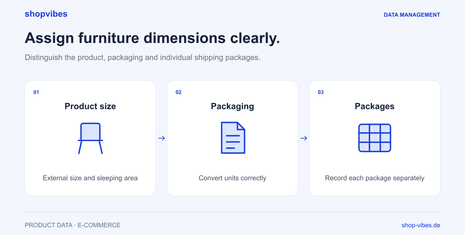
The fictional DEMO-BED-160-GREY has a sleeping area of 160 × 200 cm and external dimensions of 170 × 210 cm. Its two packages measure 215 × 45 × 15 cm and 175 × 65 × 18 cm. None of these groups of dimensions can replace another.
For each target field, compare meaning and unit. If a conversion is needed, calculate the expected value yourself before testing. Then check the output. The furniture dimensions guide explains this in detail.
5. Check images against the variant and target requirements
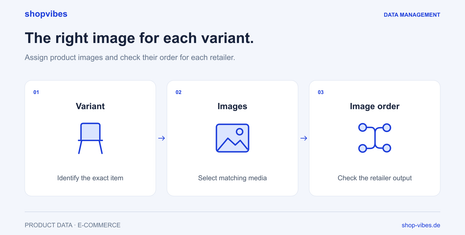
Compare the main image, detail views and dimension drawings with the SKU, colour and size. Check whether a set image also makes the quantity offered clear. Take image roles, resolution and order from the current requirements of the specific partner process.
A central media library does not replace this assignment. The guide to product images for retailers shows how to check variant relationships and image order systematically.
6. Compare the source, mapping and output
In shopvibes, configured mapping connects internal attributes with partner fields. If a width is wrong, check the variant’s value first and then its mapping. For an unsuitable material term, check the underlying product fact before changing a value mapping. shopvibes: Mapping Editor, in German.
For configured template partners, shopvibes documents a file export that can subsequently be downloaded. Whether and how a direct handover is configured for your Wayfair account is agreed separately. A generated file alone does not confirm delivery to Wayfair. shopvibes: template exports, in German.
7. Check the partner result after handover
For each test item, record which output was checked and when it was delivered. Compare feedback with that exact version. Then inspect the published presentation and offer status. A technical transfer does not confirm that an item is visible and available to order.
| Observation | Next check |
|---|---|
| Wrong size in the title | Compare the variant source and text mapping |
| Dimensions are correct but in the wrong field | Compare the meanings of product, sleeping-area and package measurements |
| Image shows the other colour | Correct the specific SKU’s media assignment |
| Data has been transferred, but the item is missing | Clarify processing, feedback and approval status with Wayfair |
| Item is visible but cannot be purchased | Check the responsible offer and stock process |
Expand the output only when these contrasting examples are correct. Repeat the affected tests after the next change. This keeps it clear whether the correction concerns source data, mapping or output.

Bring two variants and the current target template to a demo. Together, we can identify the data sources and intended partner process. Our PIM guide explains the underlying structure.
Sources reviewed on 3 November 2026. All DEMO products are fictional internal data models, not official upload templates.
About the author

Author
Philipp Schlieker
CTO & Co-Founder, shopvibes
Philipp Schlieker is CTO and co-founder of shopvibes. His work covers product data management, system integrations and e-commerce workflow automation.